
Free · No account required
Mosaic and blur editor
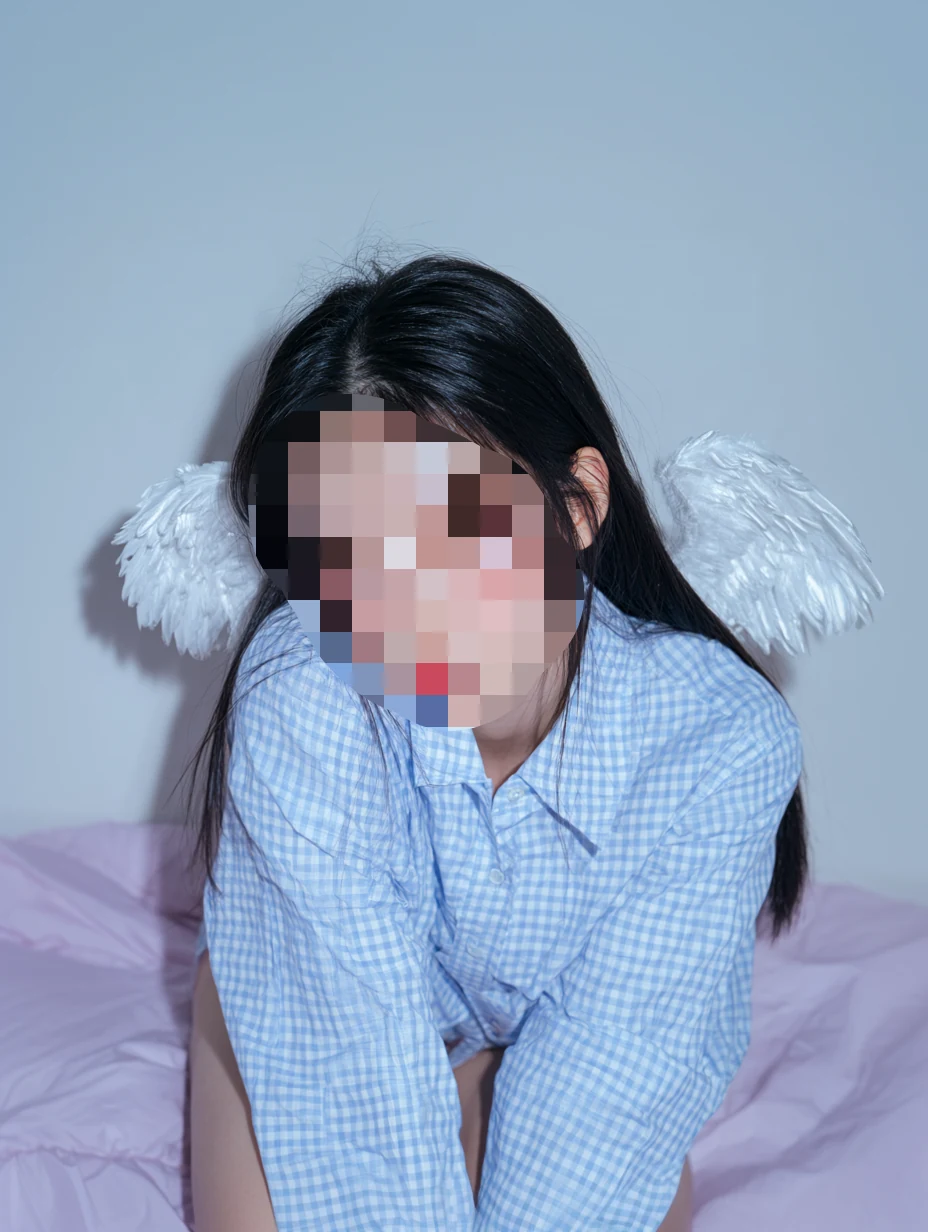
Completely free, no membership registration required, just trace the face or text you want to hide with your finger. You can use mosaic, blur, and color blending, and save the photo in its original proportions.
Sample・1080×1080px
PhotoJPEG/PNG/WebP/Up to 20MB
EDIT SAMPLES
Processing examples of mosaic, blurring, and color blending
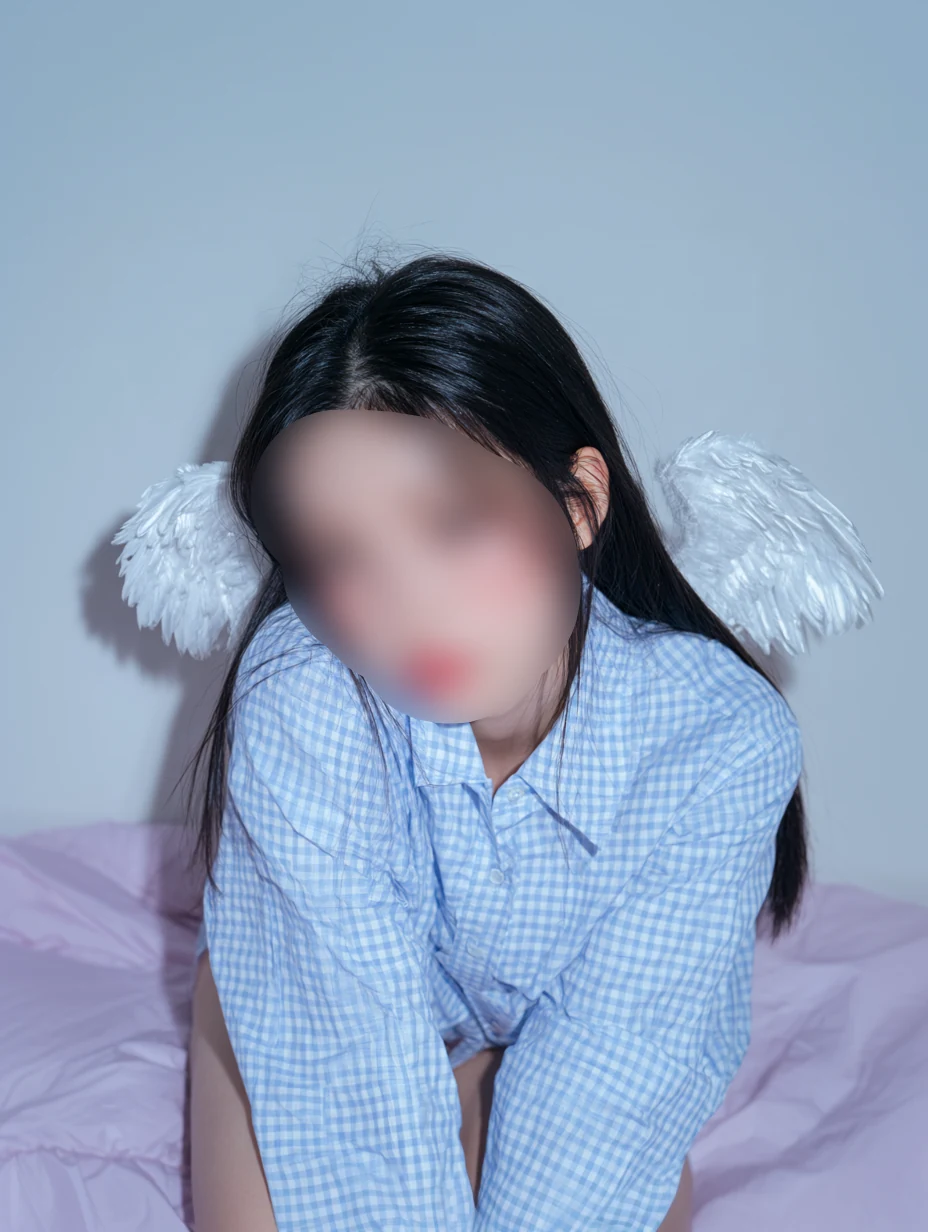
Blur
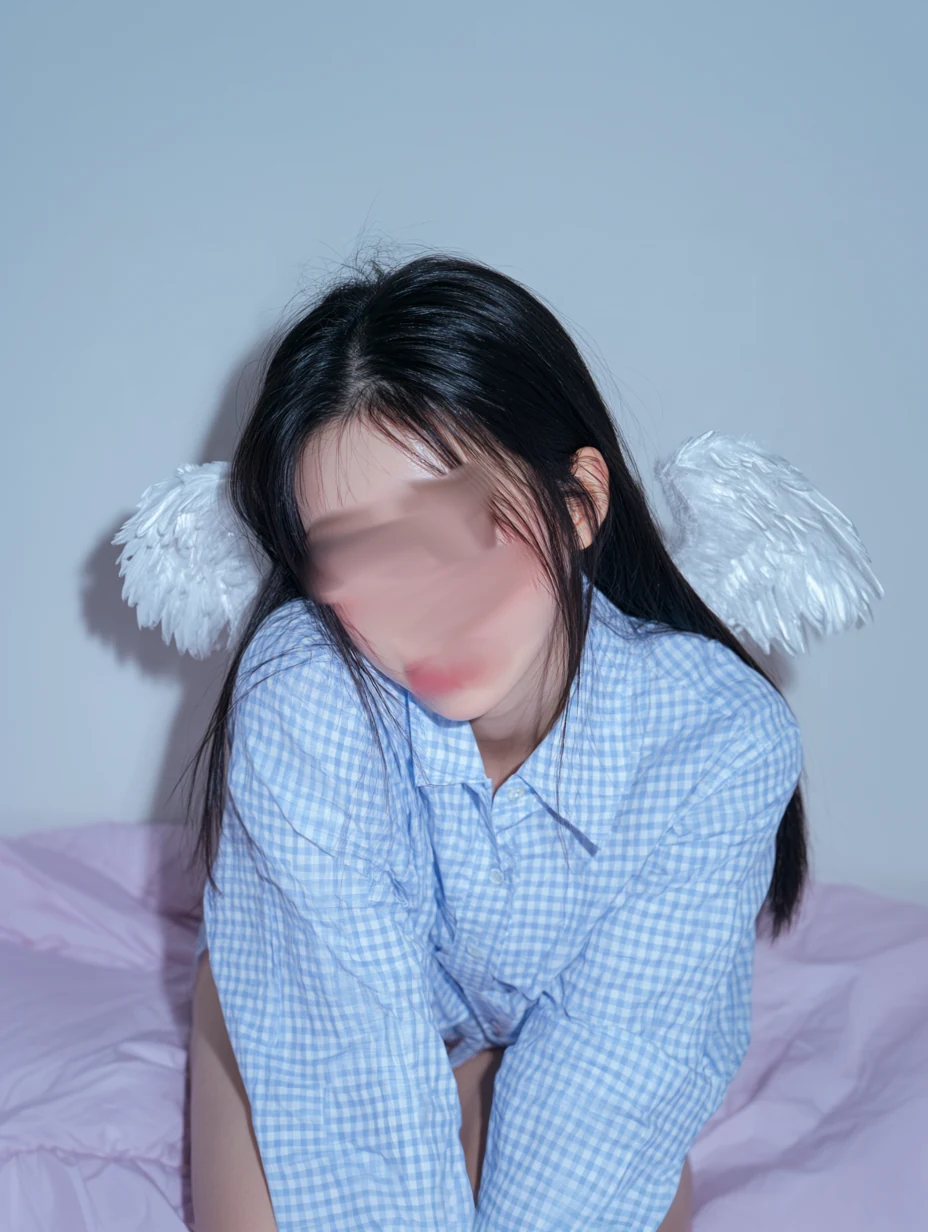
Color blending
What you can do with Mosaic processing/blur processing tools
No app installation or membership registration required. You can create it for free by selecting a photo and checking the finished product.
Just trace with your finger
By tracing the area you want to edit with a brush, you can hide only the face, background, or text in detail.
Three ways to hide
In addition to mosaic and blur, you can select color blending, which blends the colors of the photo horizontally.
Can be redone
You can undo the last line you drew or erase all edits, so you don't destroy the original photo.
How to use Mosaic processing/blur processing tools
From loading the photo to saving the completed PNG, it can be completed in 3 steps.
- STEP 1
Select photo
Select the photo to edit from your device. Edit while maintaining the photo's aspect ratio and resolution after loading.
- STEP 2
Trace the place you want to hide
Choose from Mosaic, Blur, or Color Blend, adjust the brush size, and trace over the preview.
- STEP 3
Confirm and save
Make sure that the necessary areas, such as the ticket number and people in the background, are hidden and save as PNG.
Tips to make it beautiful
Trace the face a little wider.
If you include a little bit of the hair and ears, rather than just the edge of the outline, you can prevent omissions even on a small screen after posting.
Thin brush for letters
Trace the ticket number and name several times with a thin brush to avoid covering too much of the design you want to keep.
Check the saved image again
Before posting to SNS, please enlarge the saved image and check that no personal information remains in the reflection or background.
Other image processing tools
You can process the same photo to create the image you want, such as hiding it, cutting it out, arranging it, putting it in a frame, etc.
Frequently asked questions
Is mosaic processing free of charge?
Yes. You can use mosaic, blur, color blend, brush adjustment, undo, and save the completed PNG for free.
Can I create a mosaic using my finger on my smartphone?
Yes. On a smartphone, you can trace the preview with your finger, and on a computer, you can edit it with a mouse or trackpad.
Are the photos sent to the server?
No. The selected photos can be loaded and processed only in the browser. It is not uploaded or stored on Petari's servers.